Building a Smart Home Office for Maximum Productivity
27 October 2026
A smart home office is not a room full of gadgets. It is a system where lighting, climate, connectivity, and ergonomics cooperate so you spend less energy managing your environment and more energy doing actual work. The distinction matters, because most people who set out to build one start with devices and end up with complexity. The better approach starts with the work itself: what you do, when you do it, and what repeatedly interrupts you. Automation should remove friction, not add another app to check.
This guide covers how to design that system deliberately. It addresses the physical layer, the network that everything depends on, the automation logic that makes a setup genuinely smart rather than merely remote-controlled, and the mistakes that quietly undermine both productivity and security.
Start With the Work, Not the Hardware
Before buying a single smart plug, spend a week observing your actual working patterns. Note when you start and stop, when your energy dips, which tasks require deep focus, and which interruptions recur. This sounds like busywork, but it determines everything downstream. A person who takes six video calls a day has different requirements from someone who writes for four hours straight. The first needs excellent audio, flattering light, and a reliable uplink. The second needs silence, stable temperature, and a way to signal "do not disturb" to the household.Write down three recurring friction points. Examples: the room is too dark at 7 a.m. and you fumble for a lamp; the afternoon sun glares on your monitor; you forget to mute notifications during focused blocks. Each friction point becomes a candidate for automation. Anything that does not map to a real friction point is a hobby purchase, which is fine, but should be labeled as such.
This step also sets your budget priorities. Most people overspend on visible devices, such as smart bulbs and displays, and underspend on the invisible infrastructure, such as networking and power protection, that determines whether the whole system is reliable. A modest set of devices on a solid foundation beats an elaborate set on a fragile one.

The Physical Foundation Comes First
No amount of automation fixes a bad desk setup. Before layering intelligence on top, get the fundamentals right, because smart devices amplify whatever environment they sit in. If your chair causes back pain by 2 p.m., a schedule that adjusts your blinds will not recover the lost afternoon.Desk, Chair, and Monitor Geometry
Set monitor height so the top third of the screen sits at or slightly below eye level, roughly an arm's length away. A monitor arm is one of the highest-value purchases in a home office because it makes correct positioning adjustable rather than fixed. If you use a laptop as your primary display, a stand plus external keyboard and mouse is not optional; working on a laptop for full days compresses your posture in ways that accumulate.For the chair, prioritize adjustability over padding. Seat height, seat depth, lumbar support, and armrest position all need to fit your body, and no single chair fits everyone. If you can, try before buying. A common mistake is spending heavily on a chair without checking whether its seat depth suits your leg length, which makes an expensive chair as uncomfortable as a cheap one.
Lighting That Works With Automation
Lighting deserves special attention because it is both an ergonomic and an automation concern. Aim for layered light: ambient light for the room, task light for the desk, and bias lighting behind the monitor to reduce contrast between screen and wall. Bias lighting in particular reduces eye strain during evening work, and it is cheap to implement with an LED strip.For automation, prefer smart bulbs or smart switches that support dimming and tunable white. Tunable white lets you run cooler, brighter light in the morning and warmer, dimmer light in the evening, which supports alertness early and wind-down later. This is a general practice rather than a guaranteed physiological effect, but most people find it more comfortable than fixed cool-white light all day.
One caution: smart bulbs and physical wall switches interact badly. If someone flips the wall switch off, the bulb loses power and drops off the network. The cleaner solution is a smart switch that controls the circuit, keeping bulbs powered, or smart bulbs paired with switch guards or covers that prevent accidental power cuts. Decide which approach fits your wiring and your household before buying.
Power and Cable Management
Put your computer and network gear on a quality surge protector or, better, a small uninterruptible power supply. A UPS does two things: it rides out brief outages so you do not lose work, and it conditions power. For anyone who takes calls or handles time-sensitive work, this is inexpensive insurance. Size it to your actual load; a UPS rated far above your needs wastes money, and one rated below will shut down under load.Cable management is not cosmetic. Loose cables collect dust, get kicked, and fail at the connector. Trays under the desk, Velcro ties, and labeled cables make troubleshooting faster and reduce the chance that a cleaning session unplugs your router.

The Network Is the Backbone
Every smart device depends on your network, and most home office problems that feel like device problems are actually network problems. Treat networking as infrastructure and budget accordingly.Why Wi-Fi Alone Is Often Not Enough
Wi-Fi is shared, contention-prone, and sensitive to walls and interference. In a home office, the practical issues are latency spikes during calls and devices dropping off when the access point is saturated. The fix is not always a bigger router. Often it is separating concerns.A wired connection to your primary computer is the single most reliable upgrade available. Ethernet eliminates Wi-Fi variability for the device that matters most. If running cable is impractical, powerline adapters or MoCA adapters over existing coaxial wiring are reasonable alternatives, though both have caveats: powerline performance varies with your home's electrical wiring, and MoCA requires coax outlets in the right places.
Segmenting Your Network
Put smart home devices on a separate network segment from your work computer. This is partly security and partly stability. Cheap smart devices are frequent targets for attackers precisely because they receive infrequent updates, and isolating them limits blast radius if one is compromised. Many consumer mesh systems now offer a guest network or a dedicated IoT network; use it. The practical benefit is also that a misbehaving device cannot flood the segment your work machine depends on.The Uplink Matters for Calls
If your work involves video calls, your upload speed and latency matter as much as download. Most residential connections are asymmetric, with upload far lower than download. Check your actual upload speed and test latency under load. A connection that benchmarks well when idle can still stutter during calls if something else in the house is uploading, such as a backup or a cloud sync. Quality-of-service settings on your router, where available, can prioritize real-time traffic, though consumer implementations vary in effectiveness.
Designing Automation That Actually Helps
The difference between a smart office and a remote-controlled office is whether the system acts on its own in ways you would have chosen anyway. Good automation is boring: it works quietly, fails gracefully, and never surprises you.Triggers, Conditions, and Actions
Most automation platforms, whether you use a hub like Home Assistant or a vendor ecosystem, model rules as trigger, condition, action. A trigger is an event, such as time of day, motion, or a calendar event. A condition is a gate, such as "only if I am at my desk" or "only on weekdays." An action is what happens.The most useful office automations are built on presence and schedule rather than voice commands. Voice is a poor primary interface for routine actions because it is slower than a switch and fails in noisy rooms.
Practical Automations Worth Building
A morning start routine: at your usual start time on weekdays, if motion is detected at the desk, turn on task lighting at a set brightness, set the thermostat to work temperature, and switch the monitor bias light on. Why presence as a condition? Because schedule alone will fire the routine on days you are away, wasting energy and creating confusing logs.A focus block routine: when you start a focus session, set a desk indicator light to red, silence non-critical notifications on your computer, and optionally set your status in your communication tools. The indicator light is the underrated piece. Household members respond to visible signals far better than to closed doors, and it avoids the awkward conversation about whether you are interruptible.
An end-of-day routine: at your stop time, dim lights, turn off task lighting, and switch off non-essential plugs. This creates a physical boundary that supports actually stopping work, which is a productivity issue as much as a comfort one.
A meeting mode: when a call begins, boost lighting to a flattering level for camera, close blinds if sun is direct, and mute smart speaker microphones. Flattering light for video means light in front of you, not behind, and not directly overhead. A key light or a window-facing desk position does more for how you look on camera than any software filter.
Local Control Versus Cloud Dependence
This is the most consequential architectural decision in a smart office, and it is usually made by accident. Cloud-dependent devices stop working when the internet is down or the vendor shuts down its service. Local-control systems, typically built on a hub that speaks to devices directly, keep working offline but require more setup and often cost more upfront.| Approach | Strengths | Weaknesses | Best For |
|---|---|---|---|
| Vendor ecosystem (cloud) | Easy setup, polished apps, broad device support | Internet dependence, vendor lock-in, service shutdown risk | Renters, small setups, people who value simplicity |
| Local hub (for example, Home Assistant or similar) | Works offline, deep customization, mixes vendors | Steeper learning curve, more maintenance, hardware cost | Tinkerers, larger setups, anyone with reliability requirements |
| Hybrid | Local control for critical devices, cloud for conveniences | Requires discipline about what goes where | Most serious home offices |
A pragmatic hybrid: keep lighting and climate on local control because you rely on them daily, and allow cloud conveniences for things you can live without during an outage. Ask of every device: if the internet drops for an hour, what stops working? If the answer includes your lights or your ability to take a call, reconsider the architecture.
Security and Privacy Without Paranoia
A smart office is a small network of internet-connected devices, and it should be treated that way. The realistic risks are not Hollywood scenarios; they are unpatched devices, reused passwords, and cameras or microphones you forgot were listening.Practical measures, in order of impact: use unique passwords stored in a password manager; enable two-factor authentication on accounts that control your home; keep device firmware updated, and prefer devices that receive updates at all; segment IoT devices as described earlier; and audit microphone and camera devices periodically, including smart speakers and displays. Cover or disable cameras in rooms where you take personal calls.
Be skeptical of devices that require cloud accounts for basic local functions. A smart plug that cannot toggle without phoning home is a design flaw, and it is a privacy consideration as much as a reliability one. Read what data a device collects before you put it in the room where you work.
Common Mistakes and Misconceptions
Mistake: automating everything at once. Large simultaneous changes make it impossible to tell what broke when something misbehaves. Add one automation at a time and live with it for a week.Mistake: buying devices before checking ecosystem compatibility. Matter and Thread have improved cross-vendor interoperability, but support is still uneven across devices and hubs. Check compatibility with your chosen hub before purchase, not after.
Mistake: ignoring the failure mode. Every automation should have a manual fallback. If your smart switch dies, can you still turn on the light? Physical switches and dumb fallbacks are not a failure of ambition; they are good design.
Misconception: more sensors means smarter. Sensors generate data and rules, and rules generate maintenance. A motion sensor that triggers lights is useful. Five sensors that trigger overlapping rules create confusing behavior and debugging sessions. Start with the minimum sensing needed for your three friction points.
Misconception: automation saves time by itself. Automation saves time only when it removes a decision or a repeated action. A rule that turns on a lamp you would have turned on anyway saves seconds. A rule that prevents you from losing a morning to a dark, cold room saves an hour. Aim for the latter.
A Realistic Build Order
If you are starting from nothing, this sequence keeps cost and complexity proportional to value:1. Fix ergonomics and lighting with non-smart purchases where possible. A good chair, monitor arm, and desk lamp come first.
2. Establish networking: wired connection for the main computer, a separate segment for IoT devices, and a UPS for critical gear.
3. Add smart lighting on local control, starting with the desk task light and bias lighting.
4. Add climate control, ideally a smart thermostat or a smart radiator valve, depending on your heating system.
5. Add presence sensing for the start routine, then build the focus and end-of-day routines.
6. Add security hardening: unique passwords, two-factor authentication, firmware update schedule, and a quarterly device audit.
Resist the urge to skip ahead. Each layer depends on the one below it, and the layers you skip are the ones that cause the most frustration later.
Final Thoughts
A smart home office earns its name when it reduces the number of small decisions between you and your work. That means starting with how you actually work, investing in the unglamorous foundation of ergonomics and networking, choosing local control for anything you depend on daily, and adding automation one rule at a time with manual fallbacks in place. The goal is not a room that impresses visitors. It is a room that disappears, quietly handling light, temperature, and interruptions so your attention stays where it belongs.
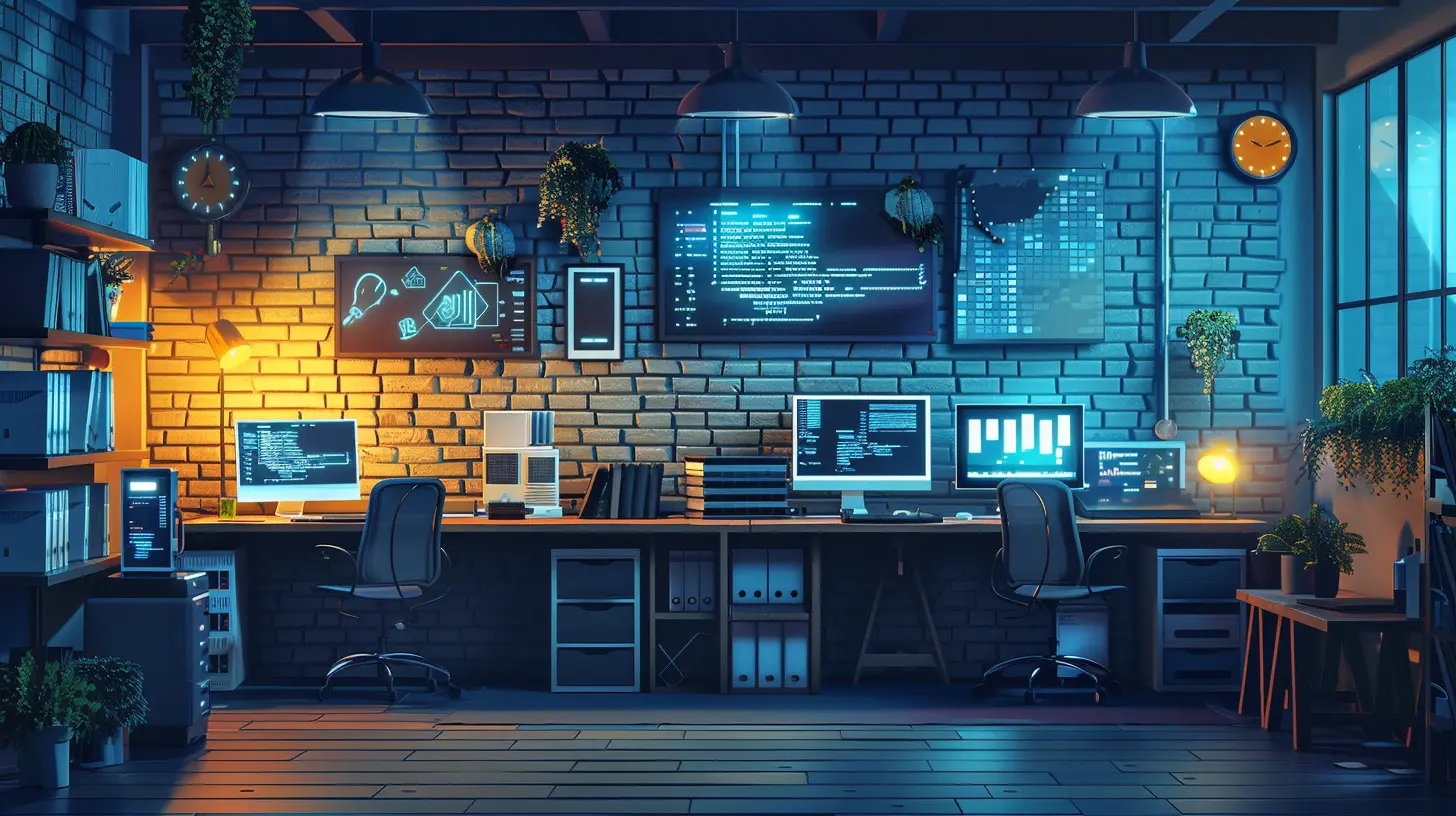
all images in this post were generated using AI tools
Category:
Smart HomeAuthor:

John Peterson