Gaming on the Big Screen: How to Connect Your PC to Your TV
4 May 2026
So, you’ve built (or bought) a killer gaming PC, complete with a flashy RGB setup, a graphics card that could probably launch a spaceship, and more RAM than you’ll ever need. But there’s one thing missing — the big screen experience.
Let’s be real — as awesome as gaming monitors are with their low latency and high refresh rates, nothing quite beats sinking into your couch with a controller in hand, playing your favorite AAA title on a massive 55-inch 4K TV. It’s cinematic, it’s immersive, and honestly, it just feels right.
But how do you actually make that dream a reality? Don’t worry, I’ve got you covered. Whether you want to crush some zombies in 4K or race cars with buttery-smooth visuals, this guide walks you through exactly how to connect your PC to your TV and get the most out of your gaming experience.
Why Game on a TV Instead of a Monitor?
Let’s address the elephant in the room. You might be thinking, “I already have a great gaming setup. Why bother with a TV?”Well, here’s the deal:
- Larger display area: Bigger screen = bigger explosions. Simple math.
- Couch comfort: Sometimes it’s not about frame rates — it’s about feet-up, popcorn-in-hand relaxation.
- Great for co-op or party games: Split-screen on a 27-inch monitor? Painful. On a 65-inch TV? Glorious.
- Cinematic experience: Games like Red Dead Redemption 2 or Cyberpunk 2077 deserve to be enjoyed like blockbuster movies.
But of course, there are trade-offs. Input lag and refresh rates are real concerns. So let’s dive into how to connect your setup without sacrificing performance.
Wired vs. Wireless: What’s the Best Way to Connect?
Before we get into cables and tech jargon, let’s break this down: you’ve got two main ways to hook up your PC to your TV — the wired way and the wireless way. One’s about reliability, the other’s about convenience.Wired Connection (HDMI, DisplayPort)
This is the go-to for serious gamers. Why?- Lag? Minimal.
- Best picture quality? Absolutely.
- Setup? Plug and play.
The most common wired solution is HDMI. Almost every modern graphics card and TV supports it, and it transmits both video and audio.
HDMI
If your PC and TV both have HDMI 2.0 or 2.1 ports, congrats! You’re golden. Just:1. Plug one end into your GPU’s HDMI output.
2. Plug the other end into your TV’s HDMI input (preferably labeled ARC or eARC for audio pass-through).
3. Switch your TV source to that HDMI port.
4. On your PC, right-click the desktop > Display Settings > Select your TV.
Boom. Instant big screen gaming.
? Pro Tip: Want 4K at 60Hz or 120Hz? Make sure both your GPU and TV support HDMI 2.0/2.1 and use a high-speed cable.
DisplayPort to HDMI Adapter
Does your graphics card only have DisplayPort, and your TV only has HDMI? No biggie — just grab a DisplayPort-to-HDMI adapter. Look for one that supports 4K and 60Hz for the best results.Wireless Connection (Miracast, Steam Link, NVIDIA GameStream)
If untangling cables isn’t your thing, wireless methods are out there — but they come with a trade-off: input lag. That’s not a huge deal for casual or turn-based games, but for fast-paced shooters? Yikes.Still, if you’re gaming from across the house or just want a clean aesthetic, here are your options:
Steam Link
This one’s an old favorite from Valve. Although the original Steam Link hardware is discontinued, the Steam Link app is alive and kicking — and it works on smart TVs, Android TV boxes, and even Raspberry Pi.Here’s how it works:
1. Install Steam Link on your TV or device.
2. Launch Steam on your PC and enable in-home streaming.
3. Connect the two over the same Wi-Fi or Ethernet network.
4. Pair a controller or use your TV remote.
It mirrors your Steam library, and the streaming quality is surprisingly great — especially on a wired connection.
NVIDIA GameStream + Shield TV
Got an NVIDIA GPU and an NVIDIA Shield TV? You’re in luck. GameStream uses your GPU to encode and stream games to your Shield device. It’s low latency and supports up to 4K HDR.1. Install GeForce Experience.
2. Enable GameStream.
3. Pair your Shield TV.
4. Stream games straight to your TV, controller and all.
Note: NVIDIA is phasing out GameStream in favor of GeForce NOW, which is cloud-based — but local streaming still works with third-party apps like Moonlight.
Miracast or Windows Wireless Display
Just want to mirror your desktop? Press `Win + K` and choose your TV from the list (if supported). It’s fast and easy — but the lag isn’t ideal for gaming.
Choosing the Right TV for PC Gaming
Not all TVs are created equal — especially when it comes to gaming. Want the best experience? Keep an eye out for these specs:1. Input Lag
- Under 20ms is great.- Game Mode helps reduce latency — always enable it.
2. Refresh Rate
- Want smooth gameplay? Look for 60Hz minimum.- 120Hz or higher is perfect for fast-action games.
3. Resolution and HDR Support
- 4K is becoming standard, but make sure your GPU can handle it.- HDR10 and Dolby Vision enhance visuals big time — especially in cinematic games.
4. HDMI 2.1 Support
HDMI 2.1 brings amazing perks for gamers:- 4K at 120Hz
- Variable Refresh Rate (VRR)
- Auto Low Latency Mode (ALLM)
Brands like LG (especially their OLED line) and Samsung QLEDs are praised for smooth PC gaming.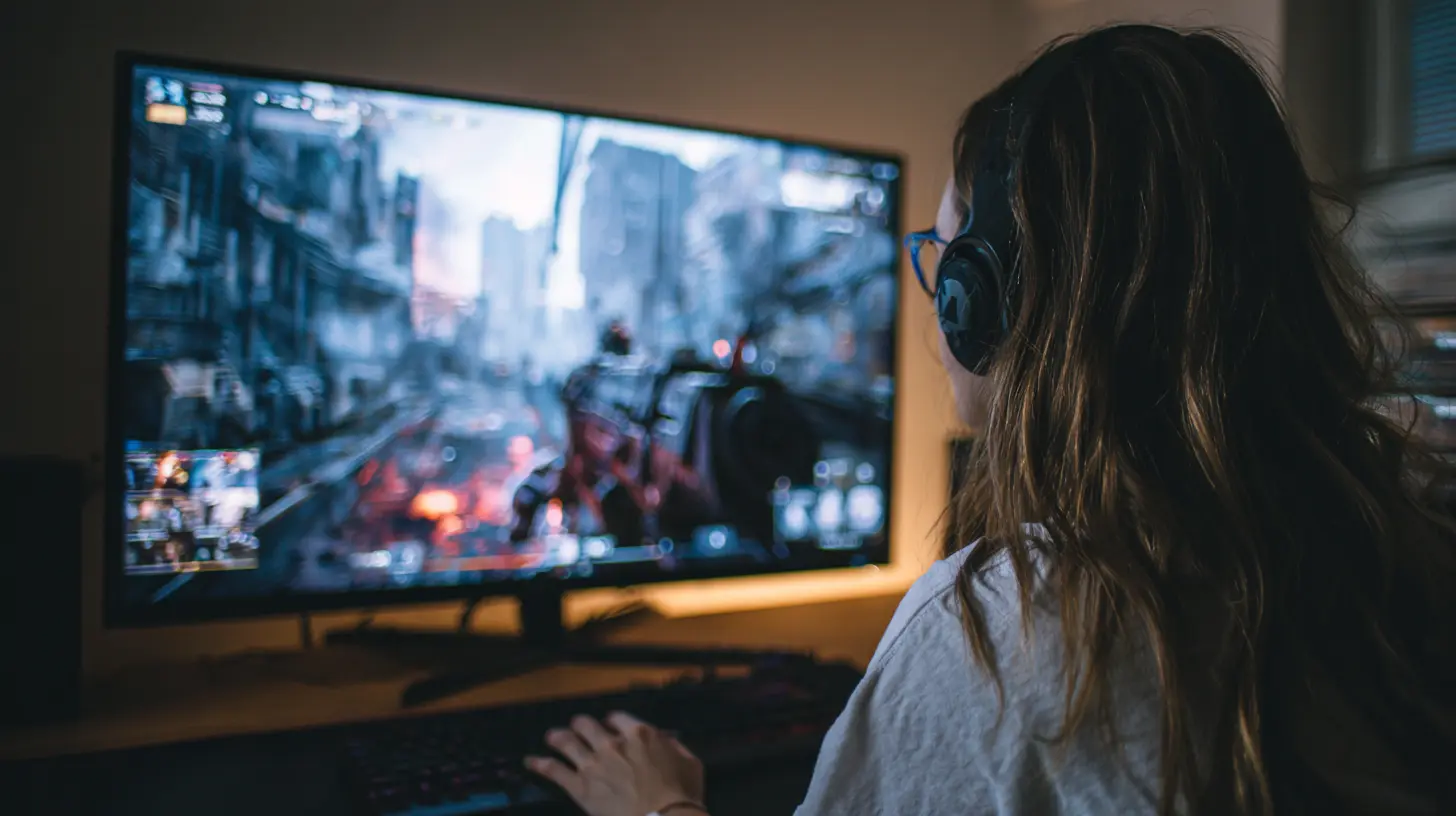
Tweaking Settings for the Ultimate Experience
Once you’re connected, don’t stop there. Make a few tweaks and you’ll seriously up your game.On Your TV:
- Turn on Game Mode to lower input lag.- Disable motion smoothing (aka that weird soap opera effect).
- Set resolution and refresh rate manually if needed.
On Your PC:
1. Go to Display Settings > Choose TV > Set resolution (try 1080p or 4K).2. Go to Advanced Display Settings > Set refresh rate (60Hz/120Hz).
3. In Sound Settings, switch the output to your TV (HDMI Audio).
4. Calibrate display colors with built-in tools or NVIDIA/AMD software.
Tips for the Best Couch Gaming Experience
Gaming on a TV is more than just plugging in a cable. Here are some bonus ideas to elevate your setup:1. Use a Wireless Controller
Xbox controllers, PlayStation DualShock/DualSense, and even 3rd-party options like 8BitDo make it easy to sit back and game. Bluetooth or a USB dongle — either works.2. Get a Bluetooth Keyboard & Mouse
If you're playing strategy games or need to tweak settings, having input devices you can use from the couch is a life-saver.3. Setup Audio Right
TV speakers are... fine. But hooking up a soundbar or a 5.1 system? Chef’s kiss. Total immersion.4. Couch-Friendly UI
Use Steam’s Big Picture Mode or something like Playnite — a free PC game launcher with a controller-friendly interface.Should You Game in 4K or Stick to 1080p?
Here’s the million-dollar question. 4K looks amazing—no doubt. But it’s also GPU-hungry.Let’s break it down:
- 4K Gaming Pros: Insane detail, future-proofing.
- Cons: Requires a powerful GPU like RTX 3080 or higher. Also — not all games scale well.
If you’re sporting mid-range hardware, 1080p or 1440p might hit that sweet spot between visuals and frame rate.
Common Issues and How to Fix Them
- No signal on TV? Double-check HDMI inputs and cables. Some TVs have "HDMI for PC" ports — use those.- Overscan (edges cut off)? Adjust scaling on the TV or in your GPU control panel.
- Laggy controls over wireless? Use Ethernet instead of Wi-Fi, or lower resolution when streaming.
- No sound through TV? Go to PC Sound Settings > Set TV as default audio output.
Final Thoughts
Gaming on your TV isn’t just a gimmick — it can completely transform how you experience your favorite titles. Whether you’re exploring vast open worlds, hosting a gaming night with friends, or just kicking back for some casual fun, connecting your PC to your TV opens up a whole new world of possibilities.And hey, you already have all the gear — might as well use that big screen for more than Netflix, right?
So grab your HDMI cable (or launch that streaming app), fire up your PC, and get your game on — big screen style.
all images in this post were generated using AI tools
Category:
Home EntertainmentAuthor:

John Peterson
Discussion
rate this article
2 comments
Jonah James
Imagine diving into rich landscapes and thrilling adventures, all while your living room transforms into an immersive gaming arena... But what secrets await?
May 29, 2026 at 2:36 AM
John Peterson
That sounds exhilarating! Connecting your PC to your TV really does open up a whole new world for gamers. Get ready to explore those secrets!
Lacey Roberts
Why squint at a monitor? Go big or go home, right?
May 12, 2026 at 3:17 AM
John Peterson
Absolutely! Bigger screens can enhance the gaming experience and make everything more immersive. It's all about enjoying the game to the fullest!